Shopify Installation
Code
Frameworks
Platforms
Tip: You can use the HTML method to install on any website.
First, make sure Shopify's default comment system is turned off at Online Store -> Blog Posts -> Manage Blogs -> Your Blog -> Comments are Disabled.
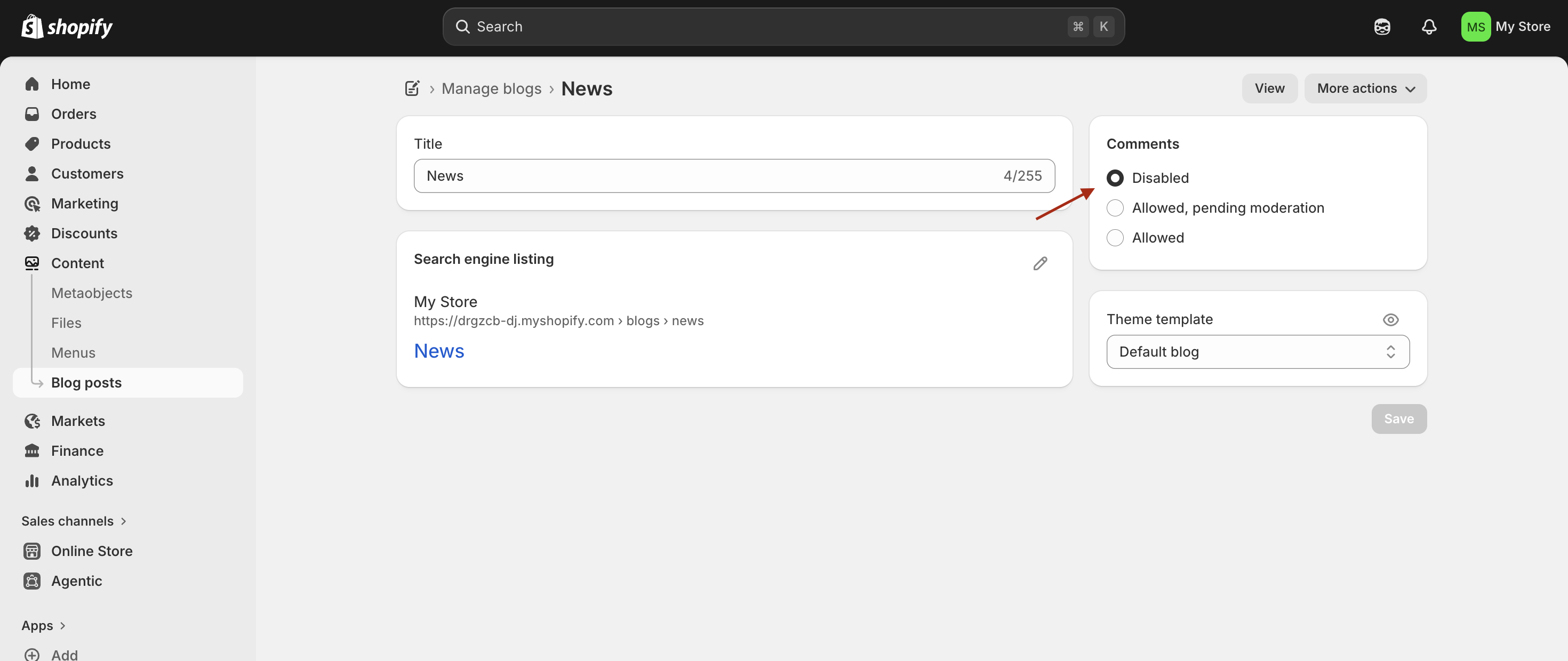
Setting up Hyvor Talk
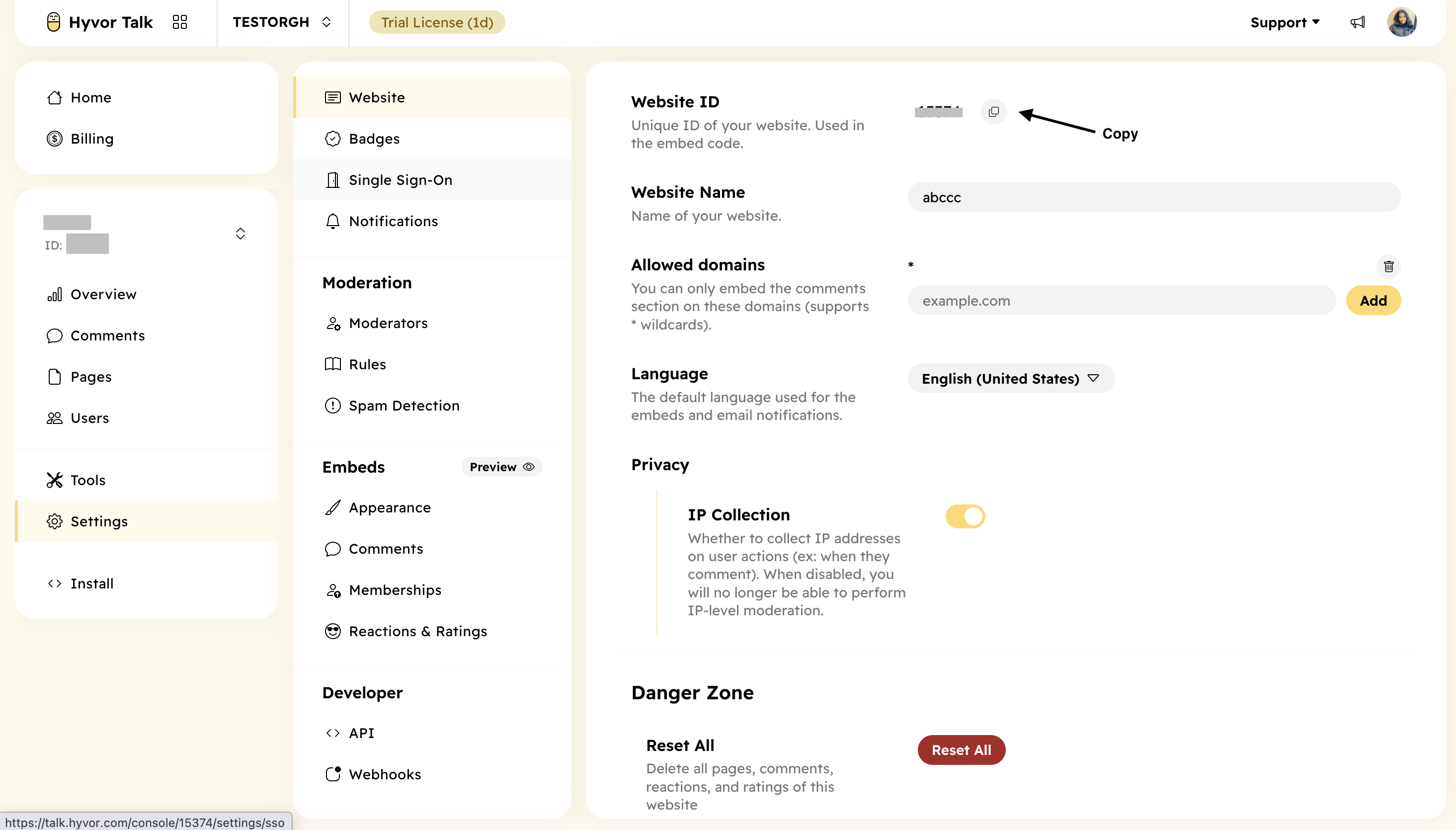
- Copy your Hyvor Talk website id from Console > Settings > Website > Website ID. You will need your website ID in the next step.
Setting up SSO
By default, users need a HYVOR account to comment. However, you can easily set up Single Sign-On to connect Shopify accounts with Hyvor Talk, allowing your users to comment easily.
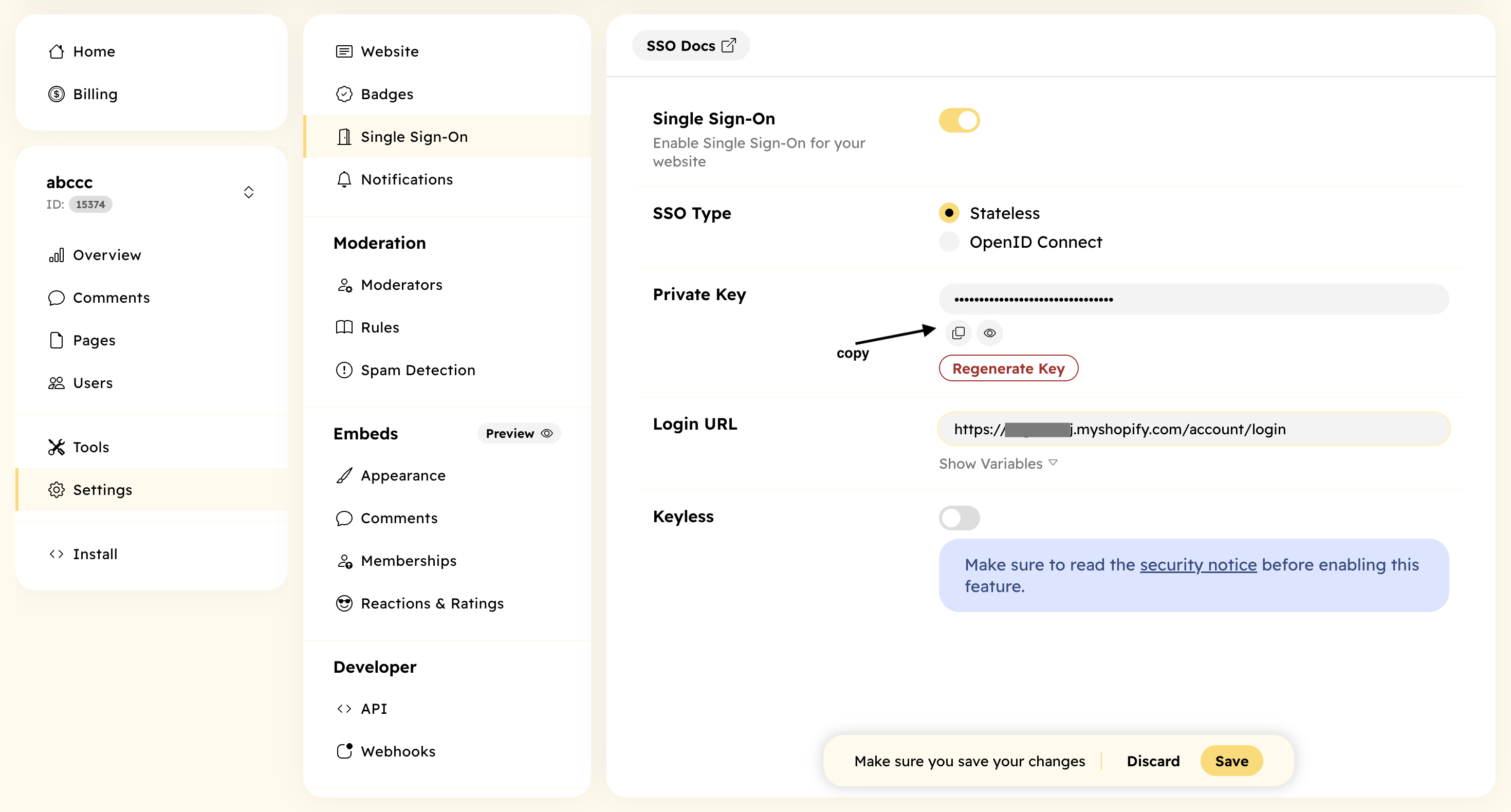
- Go to Settings > Single Sign-On and turn on SSO in your Hyvor Talk console. Make sure you select the type Stateless.
- Generate a Private key and copy the key. You will need this in the next step.
- Set login URL. This will be
YOUR-SHOP-URL/account/login
Embedding Hyvor Talk
Move to your Shopify console.
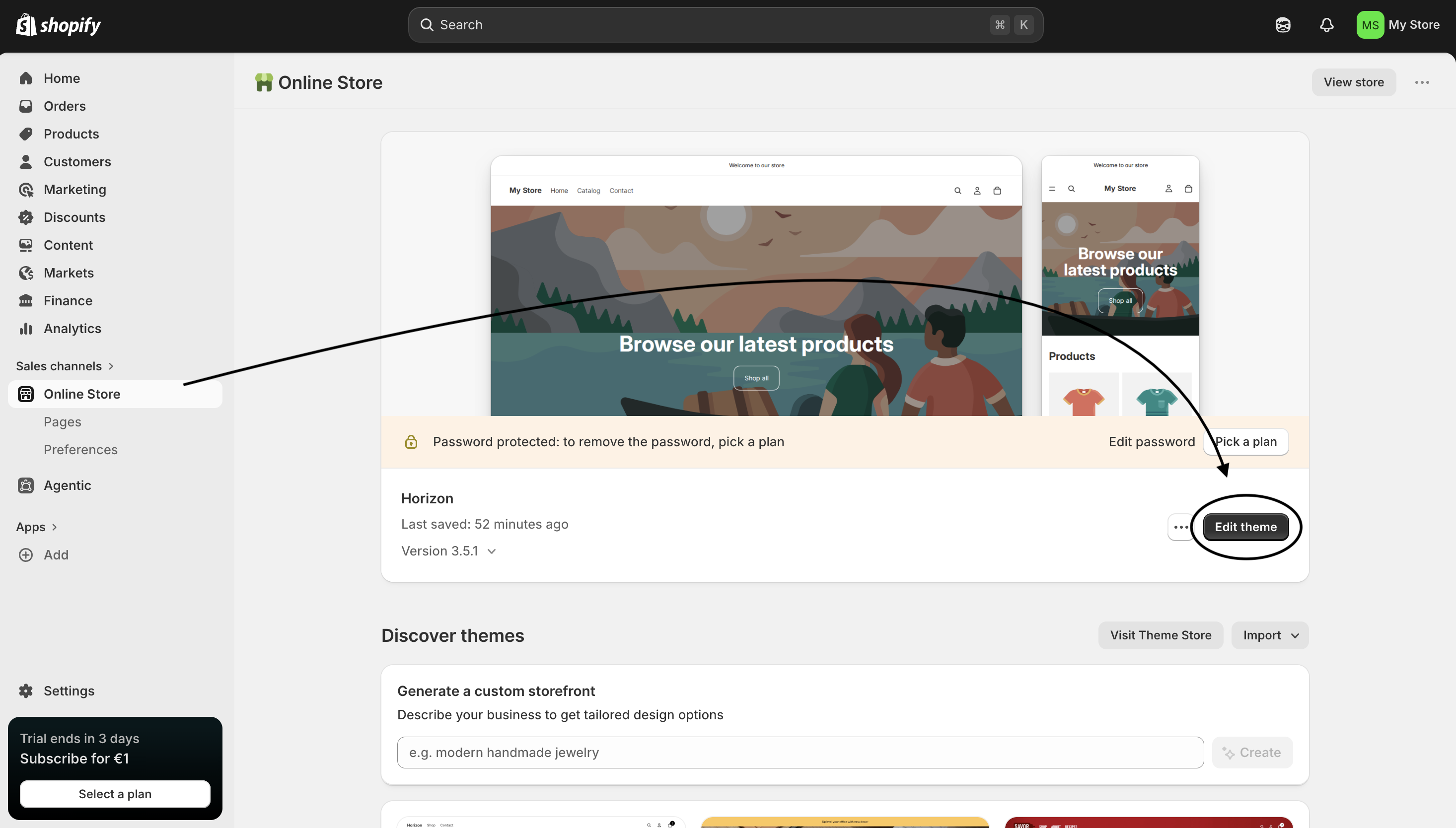
- Go to Online Store > Edit theme.
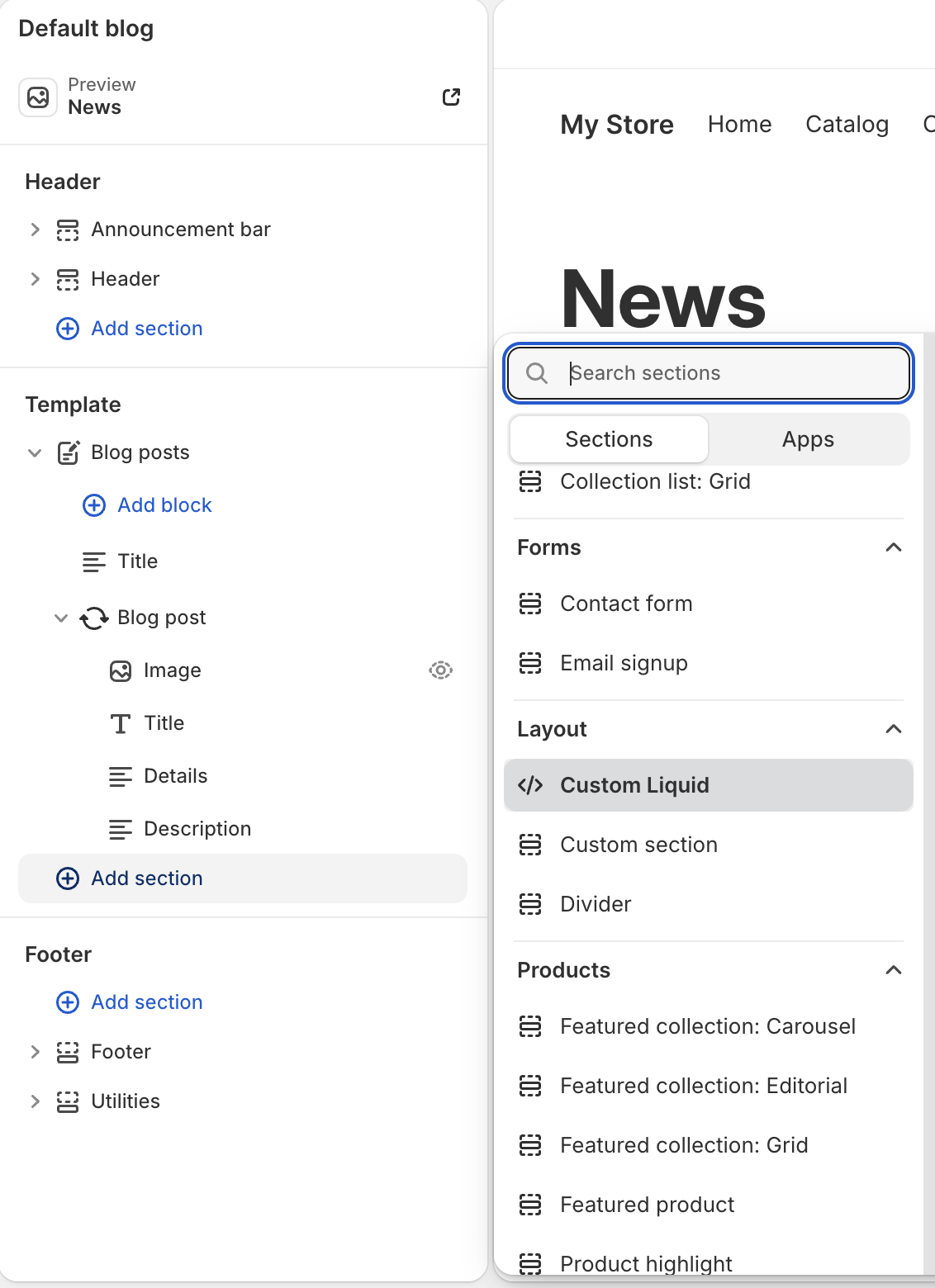
- Then, add a Custom Liquid section to the page/place where you want to add comments.
- Paste the following code into the Custom Liquid section, replacing
YOUR-WEBSITE-IDwith your Hyvor Talk website ID andYOUR-PRIVATE-KEYwith the private key you generated in the previous step.
{% assign HT_WEBSITE_ID = YOUR_WEBSITE_ID %}
{% assign PRIVATE_KEY = "YOUR_PRIVATE_KEY" %}
{% assign user_data = "" %}
{% if customer %}
    {% capture user_data %}{
        "id": "{{ customer.id | escape }}",
        "name": "{{ customer.name | escape }}",
        "email": "{{ customer.email | escape }}",
        "timestamp": "{{ 'now' | date: '%s' }}"
    }{% endcapture %}
    {% assign user_data = user_data | base64_encode %}
{% endif %}
{% assign hash = user_data | hmac_sha256: PRIVATE_KEY %}
{% if template contains "product" %}
    {% assign hyvor_page_id = product.id %}
{% elsif template contains "article" %}
    {% assign hyvor_page_id = article.id %}
{% else %}
    {% assign hyvor_page_id = '' %}
{% endif %}
<hyvor-talk-comments
    website-id="{{ HT_WEBSITE_ID }}"
    page-id="{{ hyvor_page_id }}"
    sso-user="{{ user_data }}"
    sso-hash="{{ hash }}"
></hyvor-talk-comments>
<script async src="https://talk.hyvor.com/embed/embed.js" type="module"></script>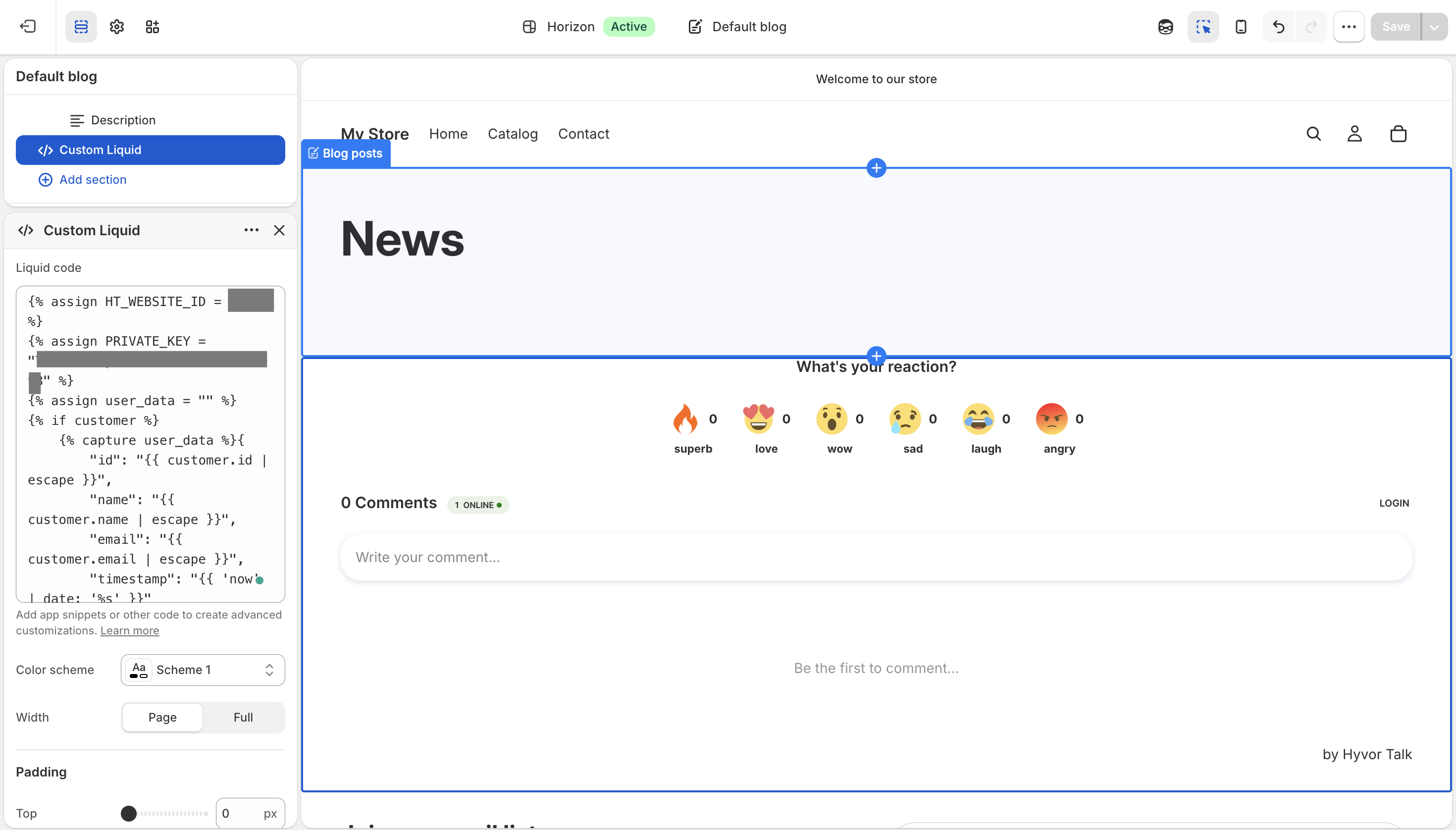
That’s all! You should see Hyvor Talk comments on your online store. Login into your shop as a customer to test Single Sign-on.
If you have an old Shopify theme, you will have to edit your theme files instead of adding a section as in the previous step.
- Open the liquid file you want to add comments to. For example,
product.liquid - Then, paste the same code in the previous step and replace the website ID and the private key. The only difference is that you will be adding the code directly to liquid files instead of using new sections.